Here's a sobering statistic: over 80% of data breaches involve compromised credentials. Passwords — no matter how complex — are fundamentally flawed as a standalone security mechanism. People reuse them across sites, fall for phishing attacks, and choose patterns that are easier to crack than they think. Two-factor authentication (2FA) addresses this by adding a second verification step that a stolen password alone can't bypass.
If you're only going to do one thing to improve your security posture in 2026, enabling 2FA everywhere is it.
What Is Two-Factor Authentication?
Two-factor authentication requires two different types of evidence to prove your identity. Security experts categorize these into three "factors":
Something you know: A password, PIN, or security question answer.
Something you have: A phone, hardware security key, or smart card.
Something you are: A fingerprint, face scan, or other biometric.
True 2FA combines two different categories. Entering a password (something you know) and then a code from your phone (something you have) is 2FA. Entering a password and then answering a security question is not — both are "something you know."
The terms 2FA and MFA (multi-factor authentication) are often used interchangeably in practice, though MFA technically refers to any setup using two or more factors.
How 2FA Methods Compare
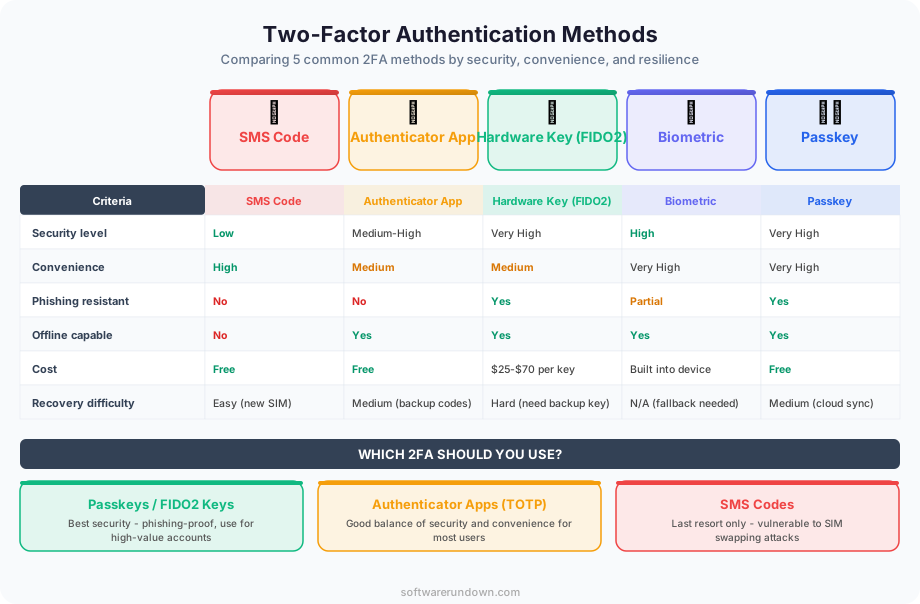
Not all second factors provide the same level of security. Here's a breakdown from weakest to strongest:
SMS Codes
A text message with a one-time code sent to your phone number. This is the most common 2FA method because it's easy to implement and requires no app installation.
Security level: Better than no 2FA, but the weakest option. SMS messages can be intercepted through SIM swapping attacks (where an attacker convinces your carrier to transfer your number to their SIM card), SS7 protocol vulnerabilities, or social engineering of mobile carrier support staff. High-profile individuals and crypto holders have lost significant assets through SIM swapping.
Use it when: It's the only 2FA option available. Any 2FA beats no 2FA.
Authenticator Apps (TOTP)
Apps like Google Authenticator, Authy, or Microsoft Authenticator generate time-based one-time passwords (TOTP) that change every 30 seconds. The codes are generated locally on your device using a shared secret established during setup — no network connection required.
Security level: Significantly stronger than SMS. There's no phone number to hijack, and the codes can't be intercepted in transit. The main risk is if someone gains physical access to your unlocked device or if you lose the device without backup codes.
Use it when: Available and you want a good balance of security and convenience. This should be your default 2FA method for most accounts.
Top apps: Authy (multi-device sync, encrypted backups), Microsoft Authenticator (integrates with Microsoft accounts, supports push notifications), Google Authenticator (simple, no account required, now supports cloud backup).
Push Notifications
Instead of typing a code, you receive a push notification on your phone and tap "Approve" or "Deny." Services like Duo Security, Microsoft Authenticator, and Okta Verify support this.
Security level: Comparable to TOTP, with better usability. The risk is "push fatigue" or "MFA bombing" — where an attacker repeatedly triggers push notifications until the user accidentally approves one. Number matching (where you must type a displayed number rather than just tapping approve) mitigates this.
Use it when: Your organization uses an identity provider that supports push-based MFA. The experience is smoother than typing codes.
Hardware Security Keys (FIDO2/WebAuthn)
Physical devices like YubiKey, Google Titan, or Feitian keys that connect via USB, NFC, or Bluetooth. When prompted, you insert or tap the key to authenticate. The key performs a cryptographic challenge-response that can't be phished or replayed.
Security level: The strongest available. Hardware keys are phishing-resistant by design — the key verifies the domain of the site requesting authentication, so a fake login page can't capture the credential. Google reported zero successful phishing attacks against employees after mandating hardware keys for all 85,000+ staff.
Use it when: You want the highest security possible, especially for high-value accounts (email, banking, cloud infrastructure, password managers). The cost ($25-50 per key) is trivial compared to the value of the accounts they protect.
Passkeys
Passkeys are the evolution of FIDO2 credentials, designed to eventually replace passwords entirely. They use the same public-key cryptography as hardware security keys but are stored on your device (phone, laptop) or synced across devices via your platform's cloud (iCloud Keychain, Google Password Manager, 1Password). Authentication uses biometrics (fingerprint, face) or device PIN.
Security level: Equivalent to hardware keys for phishing resistance, with significantly better usability. Synced passkeys are slightly less secure than device-bound keys (a compromise of your iCloud account could expose them), but still dramatically more secure than passwords + SMS.
Use it when: Available. Passkeys are the future of authentication, and major services (Google, Apple, Microsoft, GitHub, Amazon) already support them. Our password manager guide covers which managers support passkey storage.
Setting Up 2FA: Step by Step
Here's how to enable 2FA on the accounts that matter most, using authenticator apps as the primary method:
Step 1: Secure Your Email First
Your email account is the master key to your digital life. Password resets for almost every service go through email. If an attacker controls your email, they can reset passwords on everything else.
Gmail: Go to Google Account > Security > 2-Step Verification. Google now prompts you to set up passkeys first, with TOTP and hardware keys as alternatives.
Outlook/Microsoft: Go to account.microsoft.com > Security > Advanced security options > Two-step verification. Microsoft Authenticator with push notifications is the smoothest option.
Step 2: Secure Your Password Manager
Your password manager is the second most critical account. Enable the strongest 2FA method it supports — ideally a hardware key with TOTP as a backup.
Step 3: Secure Financial Accounts
Banking, investment, and cryptocurrency accounts should all have 2FA enabled. Use TOTP or hardware keys — avoid SMS if possible.
Step 4: Secure Work Accounts
Cloud infrastructure (AWS, Azure, Google Cloud), code repositories (GitHub, GitLab), and business-critical SaaS tools should all require 2FA. If you manage cloud infrastructure, MFA on the root/admin account is not optional — a compromised cloud admin account can cost hundreds of thousands of dollars. See our cybersecurity guide for the broader picture.
Step 5: Enable 2FA Everywhere Else
Social media, shopping accounts, domain registrars, DNS providers — enable 2FA on every account that supports it. A compromised social media account can damage your brand. A compromised domain registrar account can redirect your entire web presence.
Backup and Recovery
The biggest fear people have about 2FA is getting locked out. Here's how to prevent that:
Save Backup Codes
When you enable 2FA, most services provide one-time backup codes. These are your emergency access method if you lose your 2FA device. Store them securely — in your password manager, printed in a safe, or in an encrypted file. Not in a text file on your desktop.
Use Authy for Multi-Device Sync
Unlike Google Authenticator (which originally stored codes only on a single device), Authy supports encrypted multi-device sync. If your phone dies, you can access your codes from another registered device. This is a legitimate convenience improvement, though it does increase the attack surface slightly (your Authy account becomes a target).
Register Multiple Hardware Keys
If you use hardware security keys, register at least two keys per account and store the backup in a separate physical location. A single hardware key is a single point of failure.
Document Your Recovery Process
For each critical account, document how you'd recover access if you lost all your 2FA devices. Some services require identity verification, some accept backup codes, and some require contacting support with documentation. Know the process before you need it.
2FA for Organizations
If you're responsible for security at an organization, here's how to roll out 2FA effectively:
Mandate It
Don't make 2FA optional. Voluntary adoption rates rarely exceed 30%. Make it a requirement for all employees, with a clear deadline and support process. GitHub, Google Workspace, and most major platforms allow admins to enforce 2FA for all users.
Provide Hardware Keys
For the highest security, issue hardware keys to all employees. At $25-50 per key (two per employee for backup), the total cost is trivial compared to the risk of a breach. YubiKeys are the most widely supported option.
Use an Identity Provider
Centralize authentication through an identity provider (Okta, Azure AD, Google Workspace) with SSO. This lets you enforce MFA policies from a single point rather than configuring 2FA on every individual service.
Train Your Team
Explain not just how to use 2FA but why it matters. Show real examples of breaches caused by credential theft. Make sure everyone knows the recovery process. The five minutes spent on training prevents hours of support tickets.
The Road Ahead: Passwordless Authentication
Passkeys represent a future where passwords become optional. Major platforms already support passwordless sign-in using passkeys — you authenticate with your fingerprint or face, and a cryptographic key pair handles the rest. No password to forget, reuse, or phish.
We're in a transition period. Not every service supports passkeys yet, and interoperability between ecosystems (Apple, Google, Microsoft) is still improving. For now, the practical recommendation is: use passkeys where available, TOTP-based 2FA everywhere else, and hardware keys for your most critical accounts.
The destination is a world where "forgot your password" and "your account has been compromised" are equally rare. We're not there yet, but enabling 2FA today puts you dramatically ahead of the curve — and dramatically ahead of the attackers.