AI coding assistants have moved from novelty to necessity faster than anyone predicted. In 2024, they were a nice-to-have that occasionally saved you a Stack Overflow search. In 2026, developers who don't use one are measurably less productive — studies consistently show 30-50% faster task completion with AI assistance.
But which AI coding tool should you actually use? GitHub Copilot was the pioneer, Cursor reimagined the entire editor experience around AI, and Sourcegraph Cody brings deep codebase understanding to the table. We've used all three extensively in real development work. Here's our breakdown.
Quick Comparison
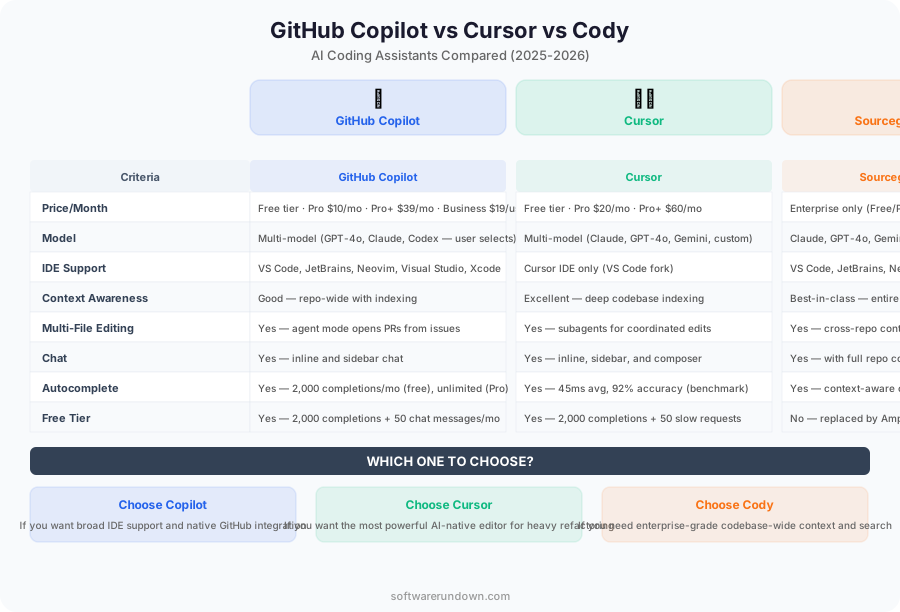
| Feature | GitHub Copilot | Cursor | Cody |
|---|---|---|---|
| Type | VS Code extension | Standalone editor (VS Code fork) | VS Code extension |
| AI Models | GPT-4o, Claude 3.5 Sonnet | GPT-4o, Claude 3.5/3.6, Gemini | Claude 3.5 Sonnet, GPT-4o |
| Inline completion | Excellent | Excellent | Good |
| Chat | Copilot Chat sidebar | Integrated chat + Composer | Chat sidebar + commands |
| Multi-file editing | Limited (Copilot Edits preview) | Composer (excellent) | Smart Apply |
| Codebase context | @workspace | Automatic + @codebase | Deep codebase graph |
| Free tier | Copilot Free (2000 completions/mo) | Free (limited requests) | Free (limited requests) |
| Pro price | $10/month | $20/month | $9/month |
GitHub Copilot: The Incumbent
Copilot needs no introduction. Launched by GitHub in partnership with OpenAI, it's the most widely used AI coding tool with over 1.8 million paying subscribers. It lives inside your existing VS Code (or JetBrains, or Neovim) as an extension, which means zero friction to adopt.
What It Does Best
Inline code completion remains Copilot's strongest feature. Start typing a function, and it predicts what you're building with impressive accuracy. The suggestions feel natural — they match your coding style after a few days of use. Tab, Tab, Tab — you get into a rhythm that's genuinely addictive.
Copilot Chat added conversational capabilities. You can ask it to explain code, generate tests, fix bugs, or refactor functions. The @workspace context lets it reference your entire project when answering questions, though it's not as deep as Cody's codebase understanding.
The recent addition of Copilot Edits (still in preview) lets you make multi-file changes through natural language. Ask it to "add error handling to all API routes" and it'll propose changes across multiple files. It works, but it's clearly playing catch-up with Cursor's Composer.
Where It Falls Short
Copilot's biggest weakness is multi-file editing. While Copilot Edits is improving, it's not yet as fluid as Cursor's Composer for complex refactoring tasks. The context window also feels smaller — on large codebases, it sometimes misses relevant context that Cody or Cursor would catch.
Model selection is limited compared to Cursor. You get GPT-4o and Claude 3.5 Sonnet, which are great, but Cursor gives you access to more models and lets you bring your own API keys.
Pricing
Copilot Free: 2,000 completions + 50 chat messages per month. Copilot Individual: $10/month. Copilot Business: $19/user/month. Copilot Enterprise: $39/user/month (adds knowledge bases and fine-tuning).
Cursor: The AI-Native Editor
Cursor took a radical approach: instead of adding AI to an editor, they built an editor around AI. It's a fork of VS Code, so all your extensions and keybindings work, but the AI integration is fundamentally deeper than any extension can achieve.
What It Does Best
Composer is Cursor's killer feature. Press Cmd+K in the editor for inline edits, or open Composer for multi-file changes. Describe what you want in natural language — "refactor the authentication module to use JWT instead of session tokens" — and Composer shows you a diff across every affected file. Review, accept, or modify each change. It feels like pair programming with a senior developer who can type at 1,000 words per minute.
The Tab prediction in Cursor goes beyond simple completion. It predicts your next edit based on what you just changed. Modified a function signature? Tab through to update every call site. Renamed a variable? It suggests renaming related variables too. This predictive editing is uniquely powerful and something no extension can replicate.
Codebase indexing happens automatically. Cursor builds a local index of your project and uses it to provide relevant context for every AI interaction. No need to manually specify files — it usually knows which files matter.
Where It Falls Short
You have to leave VS Code. That's the dealbreaker for some teams. While Cursor is a VS Code fork and feels identical, enterprise environments with standardized toolchains may not be able to adopt it. JetBrains users are also out of luck — Cursor is VS Code only.
The free tier is limited enough that you'll quickly hit walls during active development. And at $20/month for Pro, it's the most expensive option — though heavy users will argue it pays for itself in productivity.
Occasional instability. As a fast-moving startup product, Cursor sometimes ships features that aren't fully baked. We've experienced indexing issues on very large monorepos and occasional UI glitches.
Pricing
Free: 2,000 completions + 50 premium requests/month. Pro: $20/month (500 premium requests, unlimited completions). Business: $40/user/month (centralized admin, enforcement policies).
Sourcegraph Cody: The Codebase Whisperer
Cody's angle is deep codebase understanding. While Copilot and Cursor work primarily with your current file and nearby context, Cody leverages Sourcegraph's code intelligence platform to understand your entire codebase — including code across repositories, dependencies, and documentation.
What It Does Best
Codebase context is where Cody shines. Ask it "how does our payment processing work?" and it'll find the relevant code across multiple repositories, even if you've never opened those files. This is transformative for large, complex codebases where no single developer understands every component.
The @-mention system lets you precisely control context. @file, @repo, @symbol — you can guide Cody to exactly the right context for your question. This precision is valuable when the automatic context selection isn't enough.
Smart Apply takes Cody's suggestions and applies them to your code with awareness of the surrounding context. It's not just pasting — it adapts the suggestion to match your code style, variable names, and patterns.
Cody is also the most transparent about which context it's using. You can see exactly which files and symbols were referenced in each response, which builds trust and makes it easier to verify accuracy.
Where It Falls Short
Inline completion is good but not as polished as Copilot or Cursor. There's a slight perceptible delay that disrupts the flow-state typing rhythm. For pure autocomplete speed, Copilot still leads.
The full power of Cody requires Sourcegraph Enterprise, which is a significant investment for large organizations. The free tier and Pro tier are solid, but the codebase graph features are most impactful at scale.
Multi-file editing is less refined than Cursor's Composer. Cody can suggest changes across files, but the review-and-apply workflow isn't as smooth.
Pricing
Free: Unlimited autocomplete, 200 chat messages/month. Pro: $9/month (unlimited chat, larger context). Enterprise: Custom pricing (full Sourcegraph platform integration).
Head-to-Head: Real Coding Tasks
We tested all three on identical tasks across different scenarios:
Task 1: Implementing a REST API Endpoint
"Add a PATCH /users/:id endpoint with validation, error handling, and tests."
- Copilot: Generated the endpoint correctly via Chat. Required manual test file creation. Time: 8 minutes.
- Cursor: Composer created the endpoint, validation, error handling, and test file in one shot. Time: 4 minutes.
- Cody: Generated good code via chat, Smart Apply worked well. Test generation required a separate step. Time: 6 minutes.
Task 2: Refactoring Across Multiple Files
"Rename the User model to Account across the entire codebase."
- Copilot: Copilot Edits identified most files but missed some import statements. Time: 15 minutes (including manual fixes).
- Cursor: Composer nailed it — found every reference, updated imports, tests, and documentation. Time: 5 minutes.
- Cody: Identified all references thanks to codebase graph. Applying changes required more manual steps. Time: 10 minutes.
Task 3: Understanding Unfamiliar Code
"Explain how the caching layer works in this project."
- Copilot: Good explanation of the current file's caching. Missed the Redis configuration in a separate module.
- Cursor: Found most relevant files automatically. Solid explanation with code references.
- Cody: Best answer by far. Traced the entire caching flow across 6 files, including the Redis config, cache invalidation logic, and TTL settings. This is Cody's superpower.
Which One Should You Use?
Choose Copilot if...
- You want to stay in your current editor (VS Code, JetBrains, Neovim)
- Inline completion is your primary use case
- Your team is already on GitHub and you want seamless integration
- You value stability and a massive user community
- Budget is a concern ($10/month is the best value for individuals)
Choose Cursor if...
- Multi-file editing and refactoring are daily activities
- You're willing to switch editors for a significantly better AI experience
- You want the most advanced AI coding capabilities available today
- You work on projects where the editor's predictive editing can shine
- You want access to multiple AI models and the flexibility to switch
Choose Cody if...
- You work on large, complex codebases spanning multiple repositories
- Understanding unfamiliar code is a frequent need (onboarding, code review)
- Your organization already uses Sourcegraph for code search
- You need transparency about which context the AI is using
- Budget is tight ($9/month Pro is the cheapest paid option)
Can You Use More Than One?
Absolutely. Many developers run Copilot for inline completions (it's the snappiest for real-time typing) and use Cursor or Cody for complex tasks like multi-file refactoring or codebase exploration. The cost of two subscriptions ($20-30/month) is negligible compared to developer time saved.
That said, running multiple AI extensions simultaneously can cause conflicts and slow down your editor. If you're combining tools, disable inline completions for the secondary tool.
The Bigger Picture
AI coding assistants are still early. The tools we've reviewed today will look primitive compared to what's coming. AI capabilities are advancing at a pace that makes annual comparisons almost obsolete. What matters is choosing a tool that makes you more productive today while keeping up with the rapid pace of innovation.
For most developers right now, Cursor offers the most transformative experience if you're willing to switch editors. Copilot is the safe, solid choice that integrates everywhere. Cody is the dark horse that becomes indispensable on large codebases.
Try all three — they all have free tiers. You'll know within a week which one matches your workflow.