Data loss isn't an edge case. Hard drives fail (the annual failure rate for consumer drives is 1-5%). Ransomware encrypts files (a business is attacked every 11 seconds). Employees accidentally delete important folders. Cloud services have outages. Natural disasters destroy offices. The question isn't whether you'll face data loss — it's whether you'll be prepared when it happens.
The 3-2-1 backup rule has been the gold standard for data protection for decades, and while the technology has evolved, the principle remains sound.
3-2-1 Backup Rule Self-Audit
Tick every statement that is true of your current setup. Your score updates instantly — no email, no sign-up, no download required. Also written the 321 backup rule, this is the baseline recommended by CISA for small and medium businesses.
Start ticking the boxes above to see where your backup strategy stands.
The 3-2-1 Rule Explained
The rule is elegantly simple — and although it is usually written 3-2-1, most people searching for it type it as the 321 backup rule or the 321 backup strategy. Same rule, fewer hyphens:
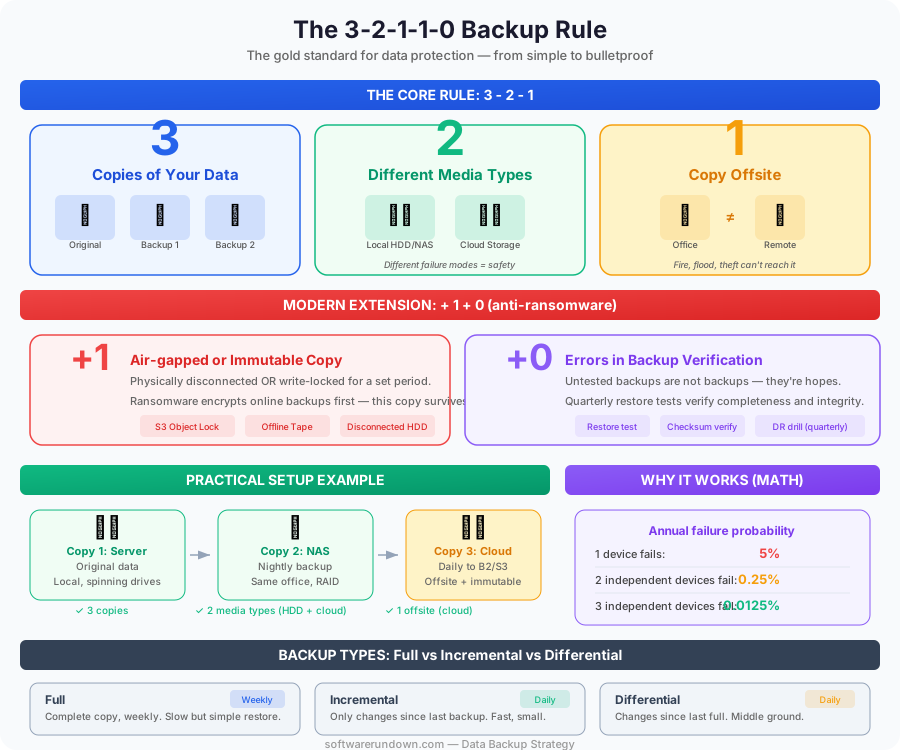
3 copies of your data: The original plus two backups. If one copy is corrupted or destroyed, you have two more.
2 different storage types: Keep copies on at least two different types of media — for example, an internal hard drive and an external drive, or a local NAS and cloud storage. Different media types have different failure modes, so a vulnerability that affects one is unlikely to affect the other.
1 copy offsite: At least one backup should be stored in a physically separate location from the others. If a fire, flood, or theft affects your primary location, the offsite copy survives.
Let's make this concrete with an example. A small business might have:
Copy 1: Original data on the office server (local, spinning drives).
Copy 2: Nightly backup to a NAS in the same office (local, different hardware).
Copy 3: Daily backup to cloud storage like Backblaze B2 or AWS S3 (offsite, cloud).
Three copies, two media types (server + NAS and cloud), one offsite (cloud). The 3-2-1 rule is satisfied.
Why 3-2-1 Works
The math behind 3-2-1 is simple probability. If the chance of a single storage device failing in a given year is 5%, the chance of two independent devices failing simultaneously is 0.25% (0.05 x 0.05). The chance of three independent devices failing is 0.0125%. By spreading copies across different locations and media types, you make total data loss a near-impossibility.
The key word is "independent." Three copies on three drives in the same RAID array aren't independent — a controller failure, ransomware attack, or power surge can take out all three simultaneously. Independence requires physical separation and different failure domains.
Modern Variations: 3-2-1-1-0
The original 3-2-1 rule predates cloud computing and modern ransomware. Updated versions address new threats:
3-2-1-1-0
Everything in 3-2-1, plus:
1 copy that is air-gapped or immutable: An air-gapped backup is physically disconnected from any network — a disconnected external drive, offline tape, or cloud storage with immutability locks. An immutable backup is one that cannot be modified or deleted for a specified period, even by administrators.
This addition directly addresses ransomware. Modern ransomware specifically targets backup systems — encrypting or deleting backups before encrypting production data. An air-gapped or immutable copy is the last line of defense that ransomware can't reach.
0 errors in backup verification: Backups that aren't tested are not backups — they're hopes. Regular restoration tests verify that your backups are actually complete, consistent, and recoverable. A backup that fails to restore when you need it is worse than no backup at all, because it gave you false confidence.
Implementing the Strategy
Step 1: Identify What to Back Up
Not all data is equal. Classify your data by criticality:
Critical (must recover immediately): Customer databases, financial records, active project files, email, source code repositories. Recovery Time Objective (RTO): minutes to hours.
Important (must recover within days): Internal documentation, marketing assets, archived projects. RTO: hours to days.
Non-essential (nice to recover): Temporary files, easily reproducible data, old logs. May not need formal backup.
This classification drives your backup frequency, retention periods, and recovery priorities.
Step 2: Choose Your Backup Types
There are three fundamental backup approaches:
Full backup: A complete copy of all selected data. Simple and reliable, but time-consuming and storage-intensive. Typically run weekly.
Incremental backup: Only backs up data that has changed since the last backup (full or incremental). Fast and storage-efficient, but restoration requires the full backup plus every incremental since. Typically run daily.
Differential backup: Backs up all data changed since the last full backup. A middle ground — faster than full, simpler restoration than incremental (just the full backup plus the latest differential). Typically run daily.
Most businesses use a combination: weekly full backups with daily incremental or differential backups.
Step 3: Set Up Local Backups
Your first backup copy should be local for fast recovery:
NAS (Network Attached Storage): Devices from Synology, QNAP, or TrueNAS provide centralized storage with built-in backup software, RAID redundancy, and snapshot capabilities. A Synology NAS with Active Backup for Business can automatically back up Windows PCs, Macs, file servers, and virtual machines.
External drives: For very small businesses or individuals, a simple external USB drive with automated backup software (Time Machine on Mac, Windows Backup, or third-party tools like Veeam Agent or Acronis) provides a basic local copy.
On-premises server: Larger organizations may use a dedicated backup server running Veeam, Acronis, or Commvault to centralize backups from all workstations and servers.
Step 4: Set Up Offsite/Cloud Backups
Your offsite copy protects against local disasters:
Cloud backup services: Backblaze ($7/month per computer, unlimited data), Carbonite, CrashPlan, or IDrive offer automatic, continuous backup to the cloud. These are set-and-forget solutions designed for non-technical users.
Cloud storage: For more control, back up to object storage like Backblaze B2 ($6/TB/month), AWS S3 ($23/TB/month), or Wasabi ($7/TB/month). Use backup software (Duplicati, restic, or BorgBackup) to automate the process with encryption and deduplication.
For businesses with significant data: Solutions like Veeam Cloud Connect or Acronis Cyber Protect Cloud provide enterprise-grade cloud backup with management consoles, compliance features, and SLA guarantees.
Backup Tools Comparison: Price and Best Use Case (2026)
| Tool | Type | Price | Best For | Immutability |
|---|---|---|---|---|
| Backblaze Personal | Cloud backup | $7/mo (unlimited) | Individuals, freelancers | No |
| Backblaze B2 | Object storage | $6/TB/mo | Devs, small business | Object Lock ✓ |
| Wasabi | Object storage | $7/TB/mo | Cost-sensitive teams | Object Lock ✓ |
| AWS S3 | Object storage | $23/TB/mo | Enterprise, compliance | Object Lock ✓ |
| Synology NAS | Local NAS | $500–1,000 one-time | SMB local backup hub | Snapshots ✓ |
| Veeam Community | Backup software | Free (up to 10 workloads) | VMs, enterprise workloads | Immutable repos ✓ |
| Duplicati | Backup software | Free / open-source | Self-hosted, developers | Encryption only |
| Acronis Cyber Protect | All-in-one | ~$50/yr (personal) | SMB, ease of use | Yes ✓ |
Step 5: Implement Immutability
Protect at least one copy from ransomware and accidental deletion:
Cloud object lock: AWS S3 Object Lock, Backblaze B2 Object Lock, and Wasabi Object Lock prevent deletion or modification of backup files for a specified retention period. Even if ransomware compromises your admin credentials, locked objects can't be touched.
Air-gapped drives: An external drive that's connected only during backup operations and stored in a safe or offsite location. Manual but effective — no network connection means no remote attack vector.
Tape storage: Still used by enterprises for long-term, air-gapped archival. LTO tapes offer massive capacity (up to 18TB per cartridge compressed) at low cost per gigabyte.
Step 6: Test Your Restores
Schedule regular restoration tests. At minimum, quarterly:
Select a random backup from the past month. Attempt to restore it to a separate location. Verify that the restored data is complete and usable. Document the time it took to restore and any issues encountered.
For critical systems, test disaster recovery scenarios: what happens if the entire server fails? Can you restore operations within your RTO? Testing reveals problems — corrupted backups, missing data, inadequate documentation — while there's still time to fix them.
Backup for Cloud-Native Businesses
If your business runs primarily on cloud services (Google Workspace, Microsoft 365, Salesforce), you might think "the cloud is my backup." It's not.
Cloud providers protect against their infrastructure failures, not against user actions. If an employee accidentally deletes a SharePoint library, Google Drive folder, or Salesforce records, the provider's protection may not help beyond a limited retention period (Microsoft 365 retains deleted items for 93 days; Google Workspace for 25 days after the admin deletes them).
SaaS backup solutions like Backupify, Spanning, Druva, and OwnBackup create independent copies of your cloud data. For any business-critical SaaS platform, a third-party backup is a reasonable investment. Our cybersecurity guide covers the broader data protection landscape.
Backup for Developers
Code repositories (GitHub, GitLab) are backed up by the provider, but keeping a local clone provides an independent copy. For databases, automated pg_dump or mysqldump scripts running as cron jobs, with output stored locally and replicated to cloud storage, provide simple but effective backup.
Infrastructure as Code (Terraform state files, Kubernetes manifests, Docker configurations) should be version-controlled and backed up alongside application code — losing your infrastructure definitions can be as devastating as losing your data. If you're building CI/CD pipelines that depend on build artifact storage, see our best CI/CD tools comparison for pipeline-aware backup strategies.
Common Backup Mistakes
Never testing restores: The number one mistake. An untested backup is Schrödinger's backup — it's simultaneously working and not working until you try to restore from it.
Keeping all copies in the same location: Three copies on three drives in the same server room aren't surviving a fire or flood.
Not encrypting backups: Unencrypted backup drives are a goldmine for thieves. Encrypt all backup media, especially offsite and portable copies. AES-256 encryption is standard.
Backing up applications but not configurations: Restoring a database is useless if you can't rebuild the server it runs on. Back up configuration files, environment variables (securely), and infrastructure definitions alongside data.
Ignoring retention policies: Keeping every backup forever is expensive and unnecessary. Define retention policies based on business and regulatory requirements — daily backups retained for 30 days, weekly for 90 days, monthly for a year, for example.
Manual-only processes: Backups that depend on someone remembering to plug in a drive or run a script will be missed. Automate everything and monitor for failures.
The Cost of Not Backing Up
The average cost of a cyberattack runs into hundreds of thousands of dollars, much of it from data loss and recovery. But even without malicious attacks, the cost of data loss is substantial: lost productivity, recreating work, customer impact, and regulatory penalties for lost customer data.
A solid 3-2-1-1-0 backup strategy costs a fraction of a single data loss incident. For a small business, a Synology NAS ($500-1,000 one-time) plus Backblaze ($7/month) provides enterprise-grade protection. There's no rational argument for not having backups in 2026. Only inertia.